Overview
An SMS ticket sends the customer a short code and a link on their phone. They use that digital ticket to pick up their belongings later. You still attach a physical tag (hanger number) on your side.
If the venue has turned on WhatsApp, staff can send that same ticket by WhatsApp instead of SMS, and guests can pick WhatsApp when they pre-register. The pickup message follows the channel used at check-in.
Check in
- 1
Get the customer phone number
Choose one method:
- Manual entry — Staff App: Check In → SMS Ticket, type the number
- Pre-register QR — scan the QR code shown on the customer's phone after they pre-registered
- Pre-register list — Staff App: Check In → Pre-register, pick the number from the list
Pre-register expiryPre-registered numbers remain available for 1 hour until used or they expire. If a guest closes the page, staff can still select them from the list. - 2
Assign a tag and create the ticket
Enter the hanger label (tag). CoatCheck checks that it is not already in use. Create the ticket to send the SMS (4-digit code + ticket link).
Learn more: Tags & NFC
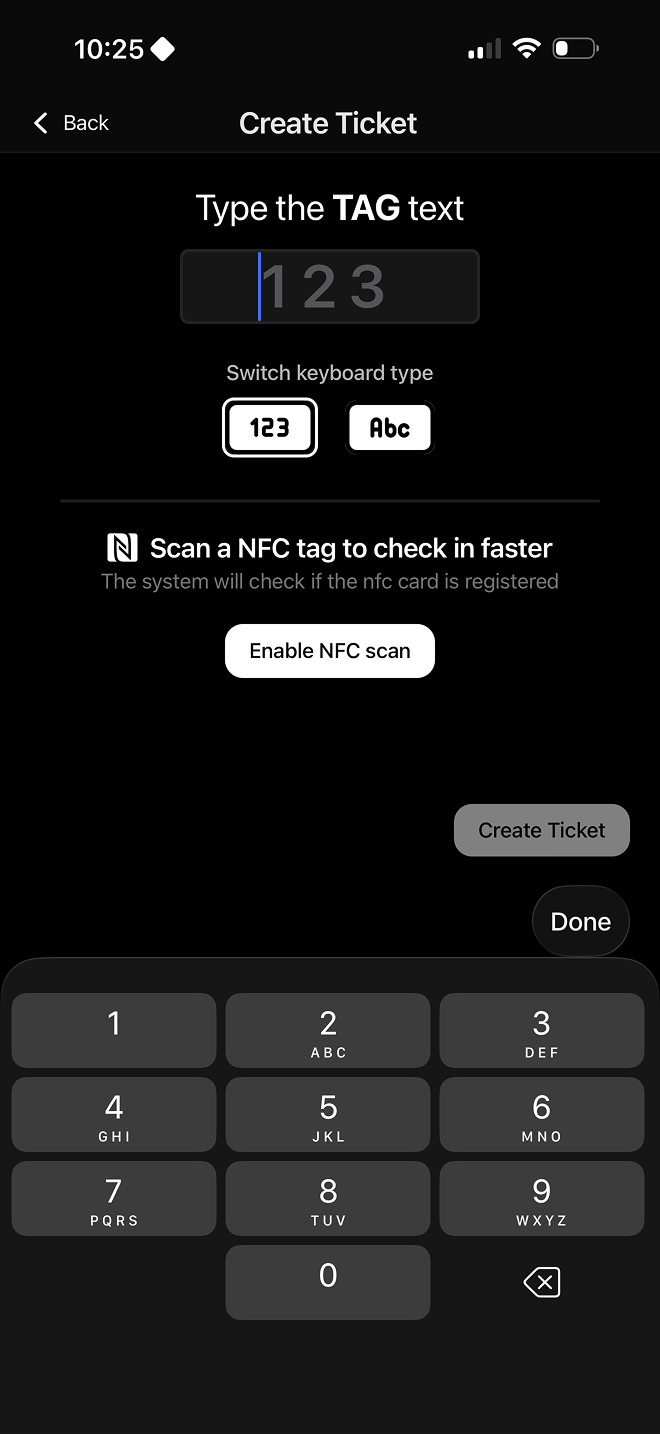
Tag field while creating a ticket - 3
Attach a photo (optional)
After creation, you can attach a photo of the belongings. This helps with disputes and rescue lookup later.
Check out
- 1
Identify the ticket
Use any of these:
- QR / ticket link — scan the customer's ticket QR from the SMS link
- 4-digit code — Staff App: Check Out → 4-digit code
- Rescue lookup — if they lost access to the phone: Check Out → Rescue Lookup, find by phone number
- 2
Redeem the tag and resolve
The app shows which physical tag to retrieve. Confirm checkout; the customer receives an SMS that their belongings were picked up.
NoteIf you used NFC to assign a tag, the app still shows the text tag (hanger number) for retrieval.
Tips
- Confirm the phone number out loud once if you typed it manually
- For US and Canada SMS costs, see billing; other countries have per-message rates in SMS pricing
- Print the staff cheatsheet for the counter